
Cloudshot Referral Portal – Earn by Referring, Help by Simplifying
Referral Portal — Earn by Helping Others Simplify Cloud Management with Cloudshot
By sharing your unique referral link, you’re not just introducing someone to smarter cloud automation — you’re also unlocking rewards for yourself.
With every successful referral, you help businesses streamline their cloud operations while you earn monthly commissions.
- Watch our step-by-step guide on how to refer, track, and earn with Cloudshot:
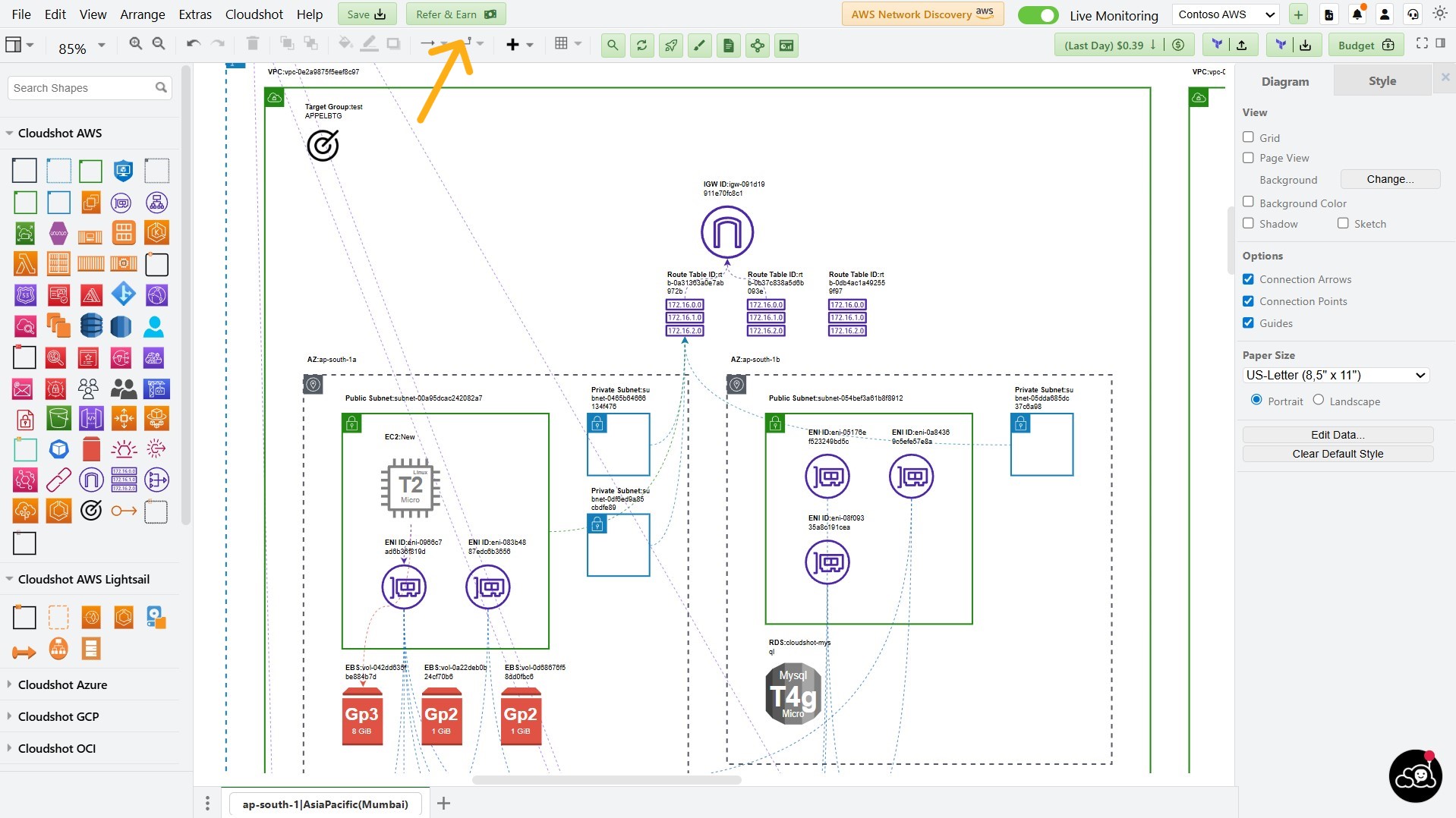
Step 1: Access the Referral Portal
Open Cloudshot.
Click on 'Refer & Earn' from the action toolbar.
The Cloudshot Referral Portal will open.
Step 2: Get Your Unique Referral Link
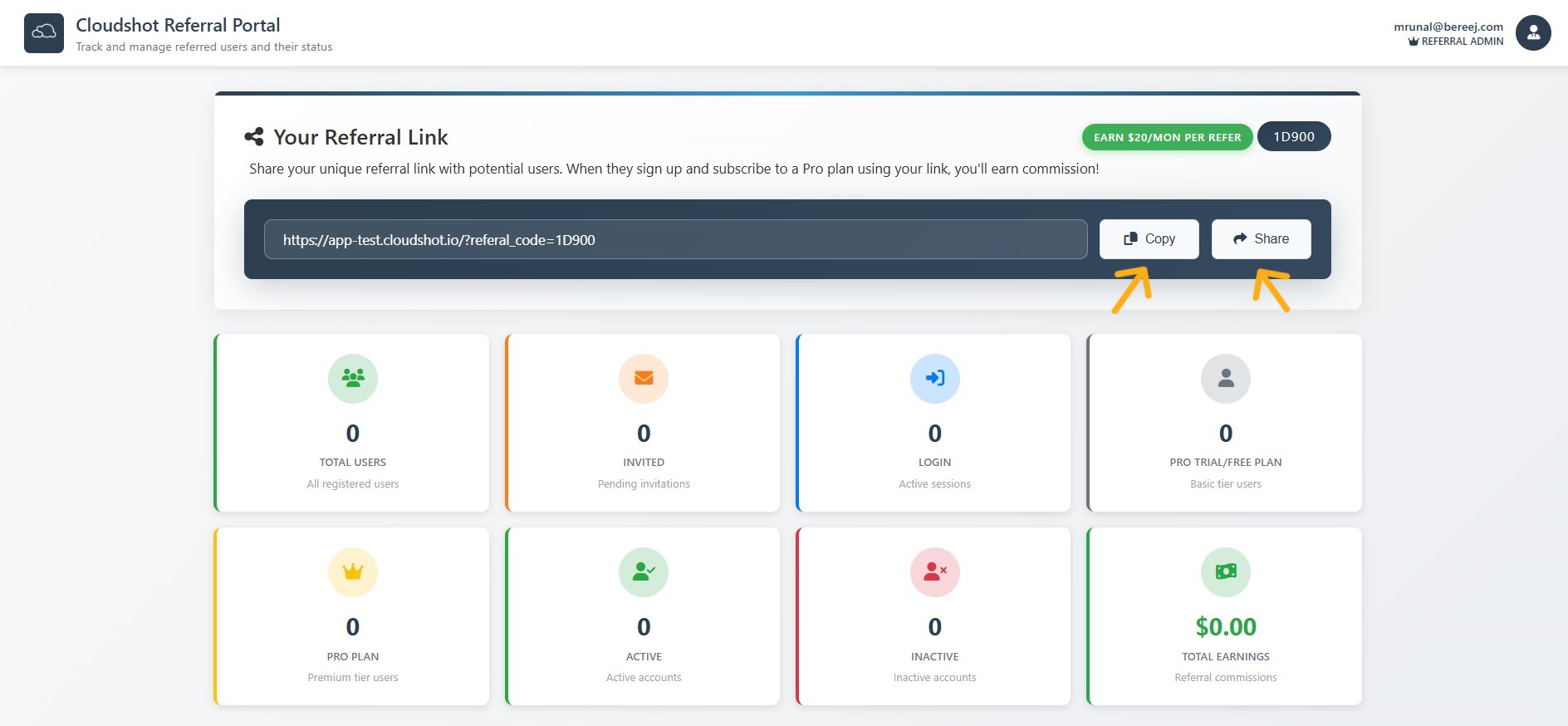
As a Cloudshot Referral Admin, you will see your personal referral link at the top of the portal.
Share this link with your friends, colleagues, or clients — anyone who could benefit from cloud automation.
You can easily Copy or Share the link with just a single click.
Step 3: Earn Rewards on Every Subscription
Earn commissions every time a referred user subscribes to a Pro plan.
You will receive $20 per month for each user who subscribes to a Pro Monthly Plan.
You will receive $100 per year for each user who subscribes to a Pro Yearly Plan.
These rewards will continue for as long as the referred users maintain their Pro plan subscription.
Step 4: Track Your Referrals & Earnings
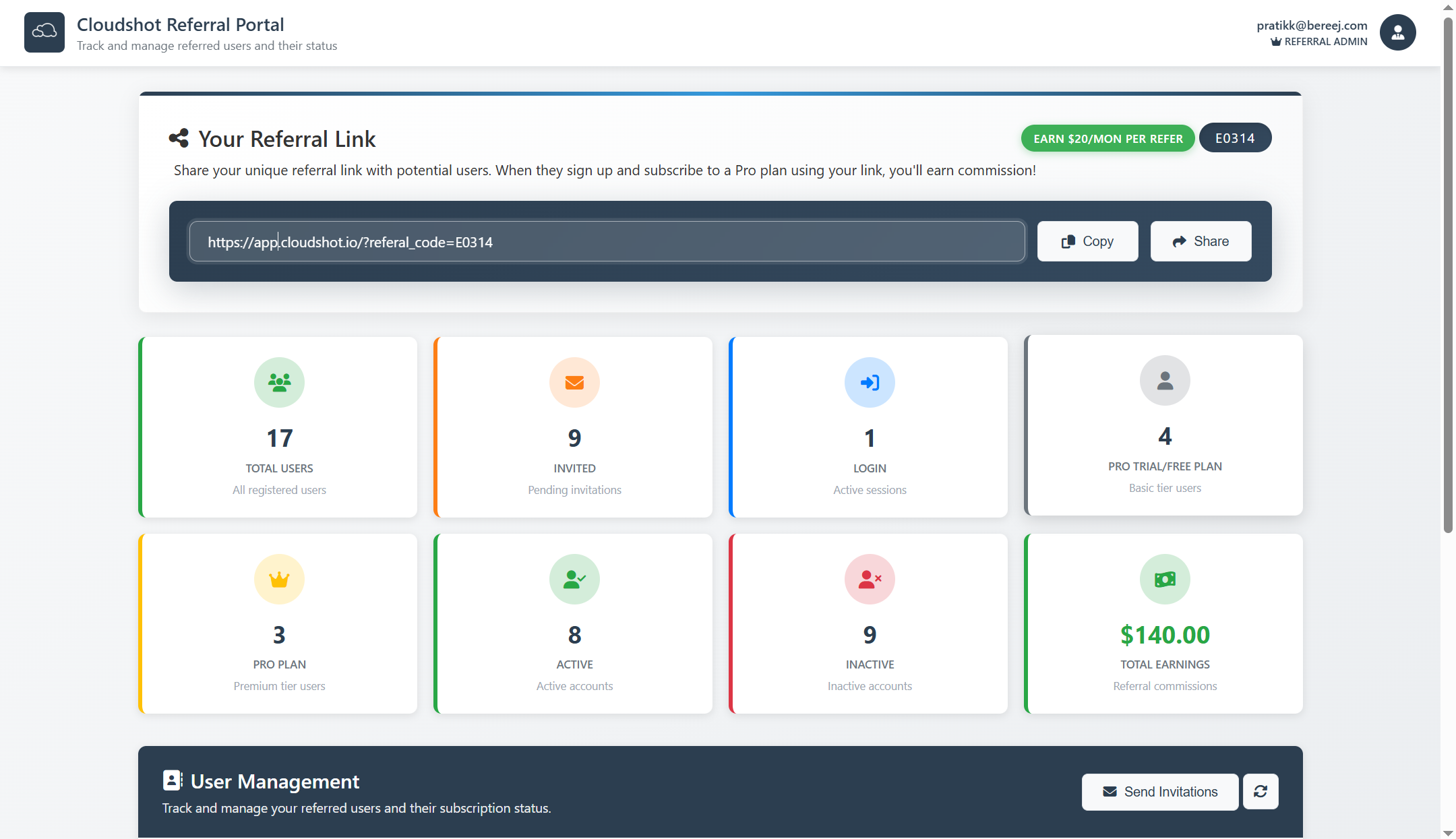
Your portal dashboard will show you:
Total Users – Who signed up using your link.
Invited – Pending invitations.
Login – Users who logged in.
Pro Trial/Free Plan – Users on trial or free plan.
Pro Plan – Paid users who bring you commissions.
Active – Active referred accounts.
Inactive – Inactive accounts.
Total Earnings – Your referral commissions earned.
Step 5: Invite Users from the User Management Panel
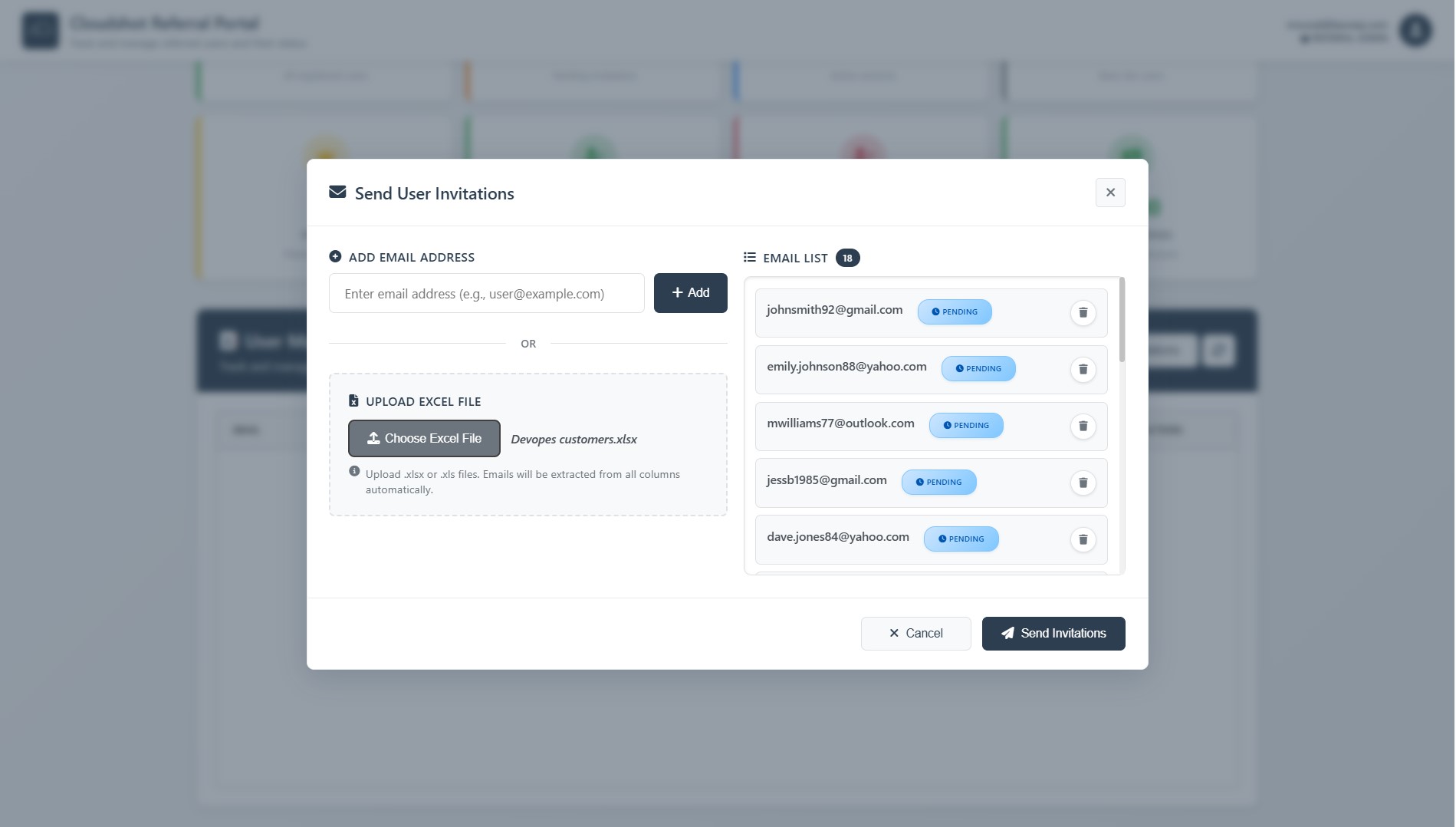
Use the User Management panel to invite users.
You can add email addresses one by one.
Alternatively, upload an Excel file for bulk invitations. The system will automatically extract email addresses from all columns.
The invited email list will appear on the right side of the panel.
If needed, you can remove any email before sending invitations.
Once ready, click ‘Send Invitations’ to complete the process.
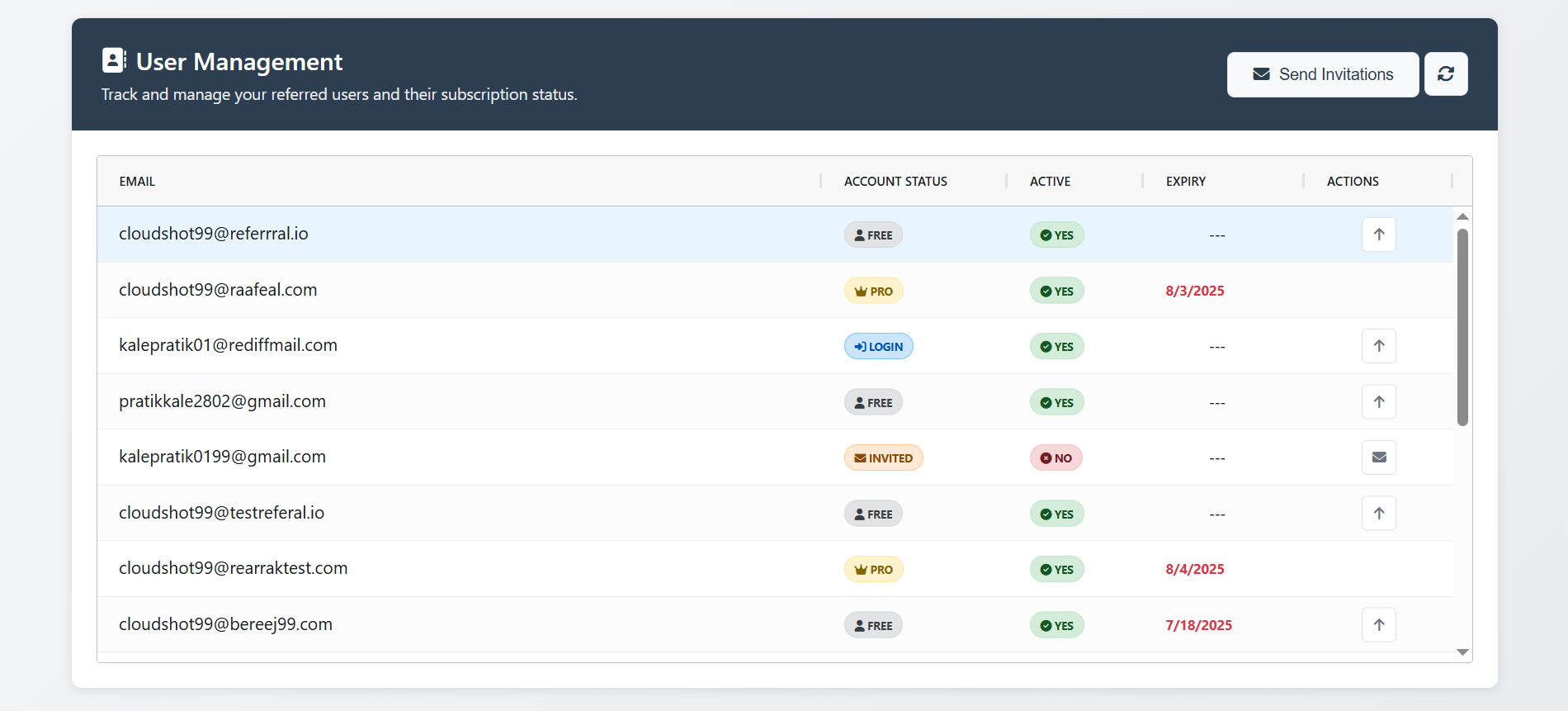
Step 6: Monitor User Activity and Subscription Status
The User Management panel displays a detailed list of all referred users.
You can view each user’s email address, account status (such as Free, Pro, Invited), and activity status (Active or Inactive).
The panel also shows the subscription expiry date for Pro plan users.
You can easily check if an invited user has accepted the invitation or logged in.
This helps you monitor referral engagement and track potential earnings.
💡 Pro Tip:
Keep sharing your referral link and tracking your stats anytime through the dashboard.
The more you refer, the more you earn. 💰
Take Control Today:
This isn’t just a referral — it’s a partnership. 🤝
When you help others streamline their cloud operations with Cloudshot, you grow with us.
Let’s make cloud management smarter — together. 🌐✨
. . .
Join Our Cloud Revolution! 🌐
Follow us for the latest in cloud visualization:
- 💼 LinkedIn: Cloudshot
- 📺 YouTube: @cloudshot-io
- 🚀 Website: cloudshot.io